
Guide to SiteAudit 8.5 Web Reports
A step-by-step guide to customer selection, reusable templates, related fleet fields, browser viewing, and CSV or XLS export.
SiteAudit Web Reports keeps customer selection, template design, report fields, browser results, and export in one workflow. Use this guide to move through each step in hosted or on-site deployments.
1. Hosted and on-site behavior
Hosted users may have access to many customer databases and select one or more for each report. On-site users have a single customer, which is selected automatically.
2. Access the application
- Open the Web Reports URL supplied for your environment.
- Read and accept any required warning or government disclaimer.
- Sign in. If SSO is enabled, authentication may happen automatically.
- Use the account menu to sign out when finished.
3. Understand the dashboard
Predefined templates show a lock icon and cannot be edited directly. Copy one to create a private custom template, or create a new template from scratch. Search, sort, and favorites help organize larger template collections.
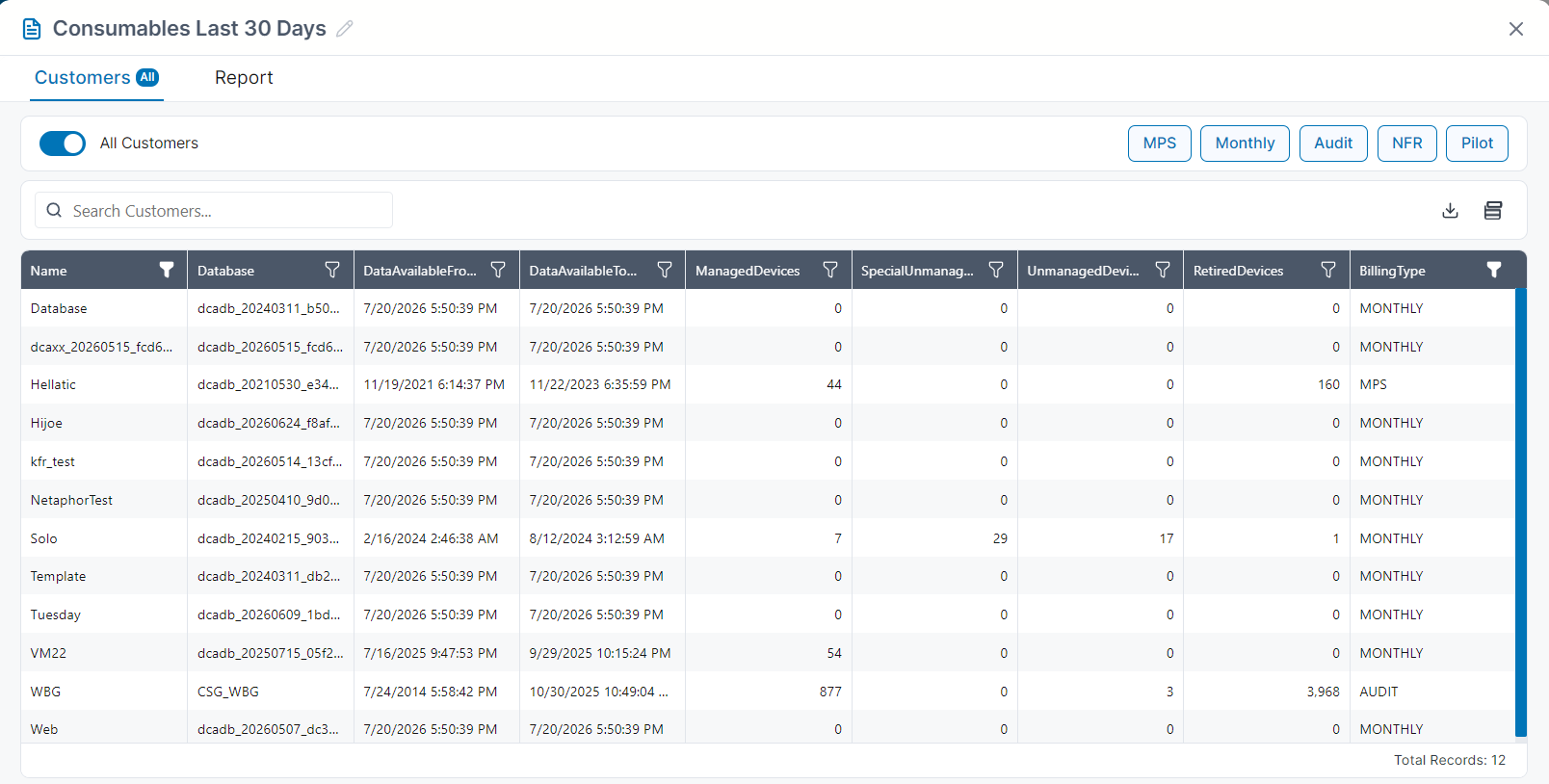
4. Select customers in hosted environments
- Search by customer name or database.
- Use advanced filters such as billing type, days monitoring, expiration date, or managed device count.
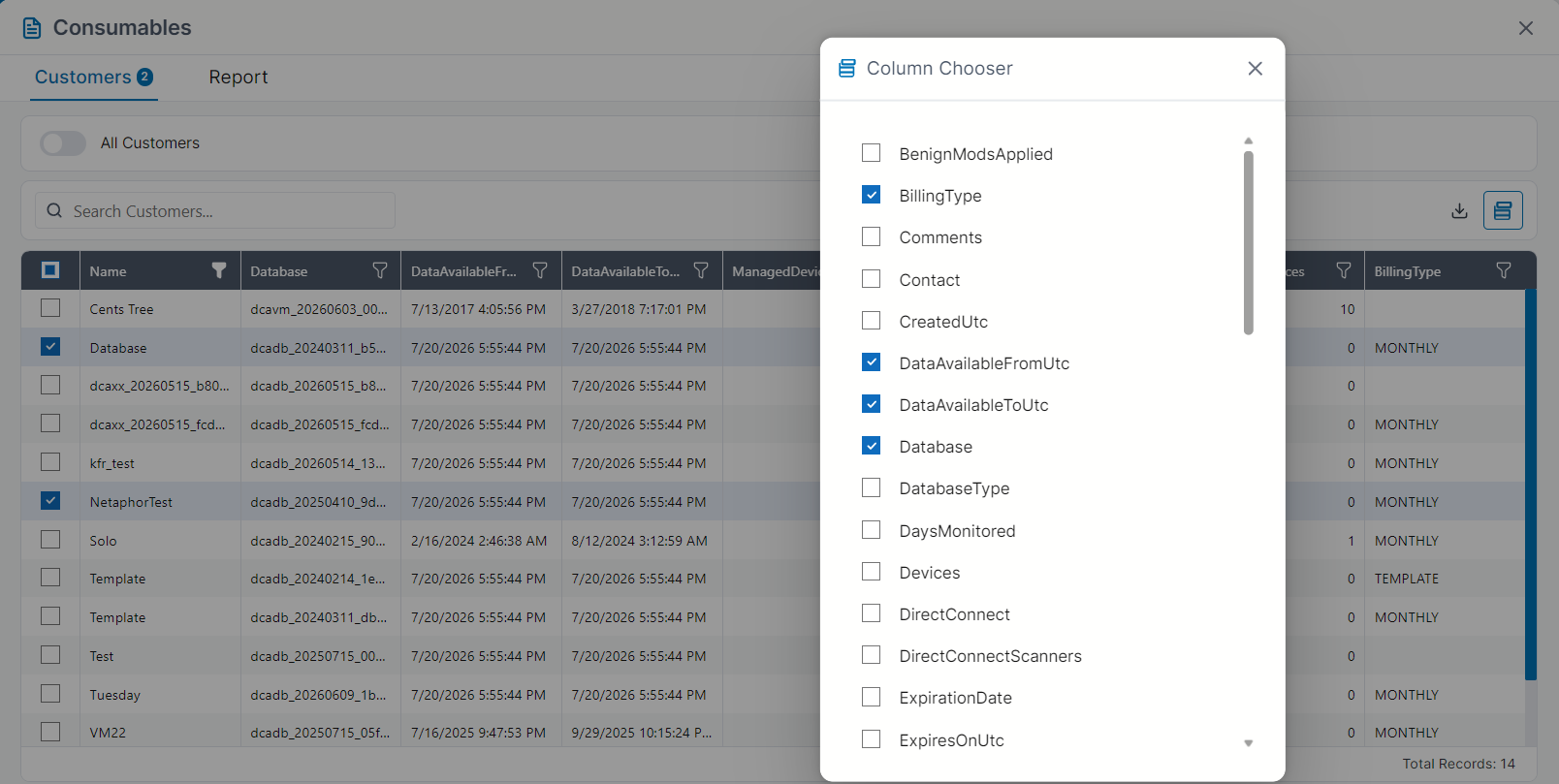
- Customize the customer-list columns when more context is needed.
- Select one or more customers and continue.
5. Define report columns
- Inventory: device type, model, firmware, IP address, department, managed status, and alert email.
- Lifetime counters: black-and-white, color, and total counts.
- Consumables: description, type, level, and days remaining.
- Incidents: severity and alert descriptions.
6. Manage custom templates
Rename, copy, search, sort, and favorite custom templates. Templates are private to their creator in version 8.5.0.0 and cannot yet be shared between users.
7. Generate and export
- Choose Generate to display the report in the browser.
- Select a column heading to sort the visible data.
- Choose Export.
- Download the result as CSV or XLS.
8. Version and support information
Use the About section in Web Reports to confirm the installed version and review third-party licenses. For installers and prerequisites, visit the Downloads page.