
Sign in to print or save this article
Printing and saving articles is available to signed-in users. Sign in at http://netaphor.com/support/signin, or request an account at http://netaphor.com/support/request-access.
AA-00572 · http://netaphor.com/kb/AA-00572/creating-bak-backup-in-siteaudit-viewer
Creating .BAK Backup in SiteAudit Viewer
It is important to backup the Netaphor SiteAudit™ database periodically. How frequently the database is backed up should be dependent upon how critical the data is. In some environments, the data may not be critical and so backups may be done infrequently. In other environments where data is very critical, a backup may be scheduled to run every day. This article describes how to run a SQL script from within the SiteAudit Viewer that will backup the SiteAudit database.
Contents
- SQL Backup Script
- Running the SQL Backup Script
- Successful Backup
- Invalid Database Name
- Invalid Database Backup Path
SQL Backup Script
SQL Backup Script
This article describes how to run a SQL backup script from the SiteAudit viewer to create a backup of the SiteAudit database. This assumes that the SiteAudit Viewer and the SQL server are on the same machine. The script can also run from SQL Server Management Studio if the SiteAudit Viewer is not installed.
The following is an example script used to backup a SiteAudit database. This script must be run on the same machine where the SiteAudit database resides.
BACKUP DATABASE [SiteAudit] TO DISK = 'C:\Temp\SiteAudit.bak' WITH INIT
In this example, the name of the database to backup is SiteAudit and the backup file will be stored in the C:\Temp folder and be given the name SiteAudit.bak. It is important to remember to always include the .bak file extension when creating the database backup.
Database Backup Location
Note that the path specified in the SQL query must already exist on the machine where the SQL server is installed; otherwise the script will fail to execute.
It is possible to schedule a task to execute the SQL backup script periodically. For more information, see Scheduling SQL Backup & Shrinking Using the Windows Task Scheduler.
Running the SQL Backup Script
The following procedure describes how to run the SQL backup script to backup your SiteAudit database:
- Open the SiteAudit Viewer. (This can only be done on the same machine where the SQL Server is installed).
- Select Tools > SQL Query
- Copy the SQL script shown above and paste it into the Query window.
- Change the name of the database and the file name and path appropriately.
- Click the Execute button to run the script.
- Check the Message tab to confirm the script succeeded.
- Confirm the backup file exists in the specified location.
Successful Backup
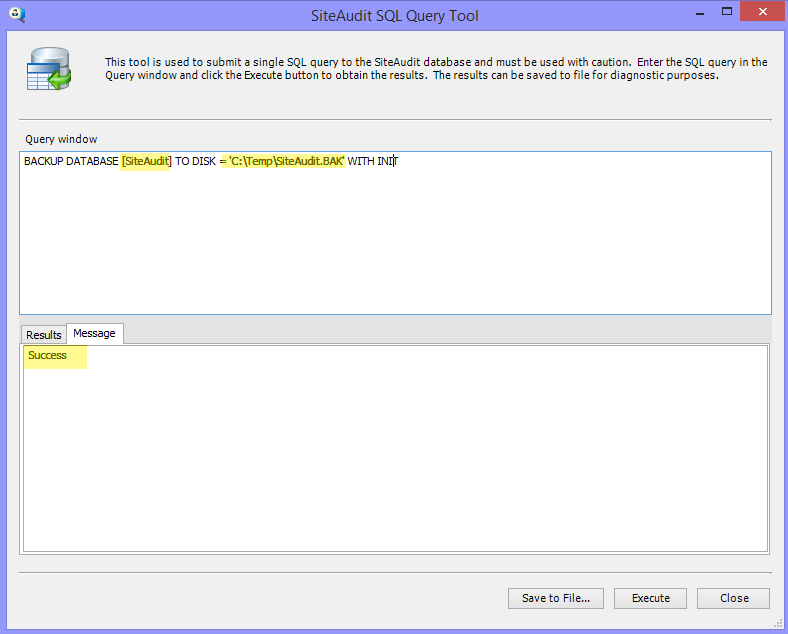
The following screenshot shows an example of a successful backup. In this case, the database name is KS_5300 and the backup path, C:\Temp, already exists on the machine where the SQL server is installed.
Invalid Database Name
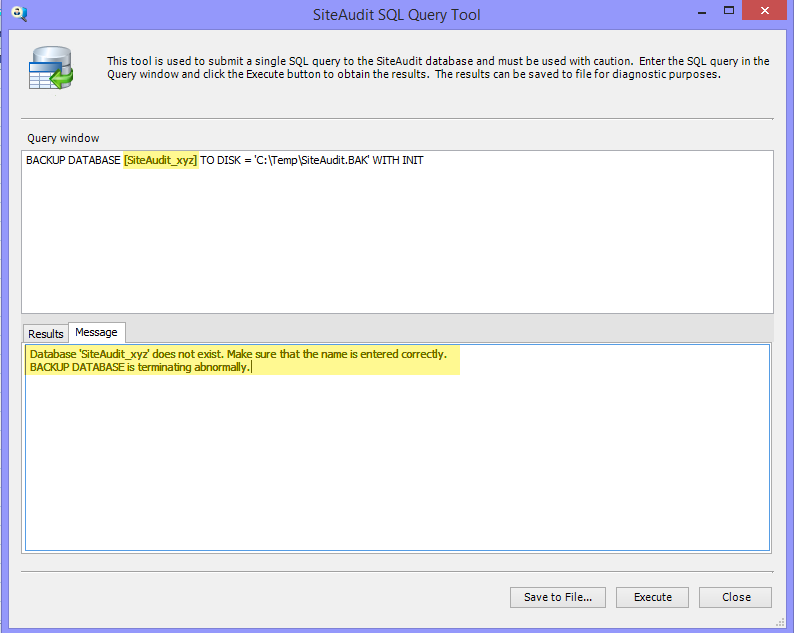
The following example shows the error message that is presented if the database name specified cannot be found on the SQL server:
Invalid Database Backup Path
If the specified path does not already exist on the machine where the SQL server is installed, the script will fail to execute as shown in the following example: