

Sign in to print or save this article
Printing and saving articles is available to signed-in users. Sign in at http://netaphor.com/support/signin, or request an account at http://netaphor.com/support/request-access.
AA-00401 · http://netaphor.com/kb/AA-00401/importing-organization
Importing Organization
Organization Importing is a feature introduced in Netaphor SiteAudit™ version 4.4 that allows one to define the organizational hierarchy, specify printer department assignments, contact information and other data, and import it into the SiteAudit Viewer.
Contents
- Feature Description
- Company
- Department
- Import Procedure
- Company and Department Examples: Importing company and department information
- Printer Assignment Examples: Importing printer assignment information
- Organization Import FAQs
- Programmatically Importing a File
- Notes
Feature Description
The Organization Import feature makes it possible to import company and department information into a SiteAudit database using an XML import file document that describes the data to import. Importing organization data will delete any existing Company or Department data (including any address and printer assignment information) and then import the new data.
SiteAudit supports one company and zero or more departments inside the company. Printers can then be automatically assigned to a department based on printer assignment ranges or networks specified in the import file. A department can have zero or more printer assignment ranges or networks. After import, devices will be automatically assigned to their designated departments.
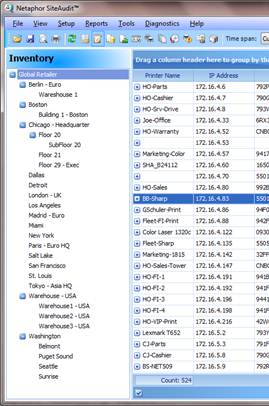
Figure 1: Organization Pane
Company
The following fields can be imported for a company:
- Company name (CompanyName)
- Street address 1 (Street1)
- Street address 2 (Street2)
- City
- State
- Zip
- Country
- Phone
- Fax
- Contact name (ContactName)
- Contact phone (ContactPhone)
- Contact email (ContactEmail)
- Number of users (NumberOfUsers)
- Alert email address (AlertEmailAddress)
- Downtime cost per user hour (DowntimeCostPerUserHour)
- *For future use: not currently enabled
- *
- Comment
- Notes
Department
The following fields can be imported for a department:
- Department name (DepartmentName)
- Street address 1 (Street1)
- Street address 2 (Street2)
- City
- State
- Zip
- Country
- Phone
- Fax
- Contact name (ContactName)
- Contact phone (ContactPhone)
- Contact email (ContactEmail)
- Number of users (NumberOfUsers)
- Alert email address (AlertEmailAddress)
- Downtime cost per user hour (DowntimeCostPerUserHour)
- *For future use, not currently enabled
- *
- Comment
- Notes
- Printer assignment by IP address:
- IP address (IPAddress)
- Printer assignment IP range information:
- Start address (StartAddress)
- End address (EndAddress)
- Printer assignment network information:
- Network address (NetworkAddress)
- Mask - can be specified as a network mask or a CIDR value
Import Procedure
The XML import document containing the desired import data must be created prior to importing data into SiteAudit. A sample import document, SiteAuditOrganizationImport.xml, is installed in the SiteAudit Sample/en (English) folder. This document can be copied and modified to import data for a specific environment.
To import data into a SiteAudit database, launch the Import Information dialog by selecting Import… from the Tools menu.
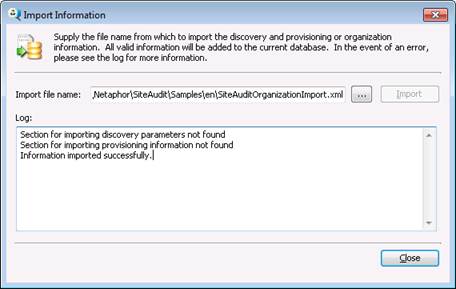
- Click the

- button to navigate and select the import document.
- Click the Import button to start the import.
Once the import process completes, a popup dialog appears and indicates if the import process succeeded or if errors occurred. The Log: text area will indicate which import data was imported and which sections were not found.
Company and Department Examples: Importing company and department information
Every organization import file must have one Company element. Within a company, zero or more departments can be specified. The only required element for a Company is CompanyName. The only required element for a department is DepartmentName.
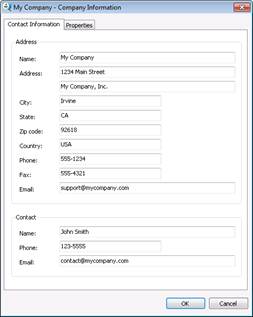
Address information can be specified for a Company or Department, but is optional.
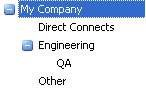
| <!—Example importing Company and department hierarchy --> <SiteAudit xmlns="http://tempuri.org/SiteAuditImportSchema.xsd"> <Import> <Organization> <Company> <CompanyName><![CDATA[My Company]]></CompanyName> <Departments> <Department> <DepartmentName>Engineering</DepartmentName> <Departments> <Department> <DepartmentName>QA</DepartmentName> </Department> </Departments> </Department> <Department> <DepartmentName>Other</DepartmentName> </Department> <Department> <DepartmentName>Direct Connects</DepartmentName> </Department> </Departments> </Company> </Organization> </Import> </SiteAudit> | |
|---|---|
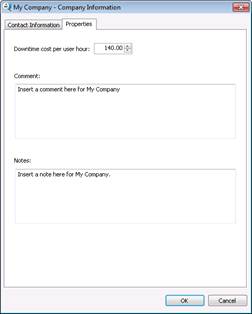
| <!--Example importing Company information fields--> <SiteAudit xmlns="http://tempuri.org/SiteAuditImportSchema.xsd"> <Import> <Organization> <Company> <CompanyName><![CDATA[My Company]]></CompanyName> <NumberOfUsers>54</NumberOfUsers> <AlertEmailAddress><![CDATA[alerts@mycompany.com]]> </AlertEmailAddress> <DowntimeCostPerUserHour>140</DowntimeCostPerUserHour> <Comment><![CDATA[Insert a comment here for My Company]]> </Comment> <Notes><![CDATA[Insert a note here for My Company.]]> /Notes> <Timezone>2</Timezone> <Address> <Street1><![CDATA[1234 Main Street]]></Street1> <Street2><![CDATA[My Company, Inc.]]></Street2> <City><![CDATA[Irvine]]></City> <State><![CDATA[CA]]></State> <Zip><![CDATA[92618]]></Zip> <Country><![CDATA[USA]]></Country> <Phone>555-1234</Phone> <Fax>555-4321</Fax> <Email>support@mycompany.com</Email> <Contact> <ContactName><![CDATA[John Smith]]></ContactName> <ContactPhone>123-5555</ContactPhone> <ContactEmail>contact@mycompany.com</ContactEmail> </Contact> </Address> </Company> </Organization> </Import> </SiteAudit> | |
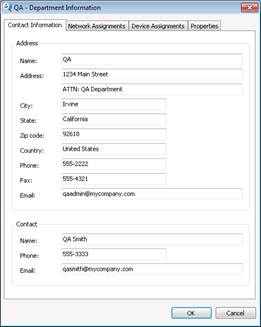
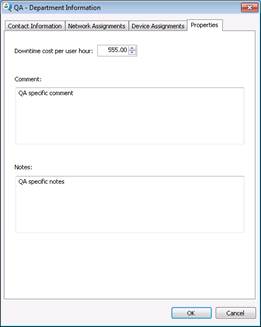
| <!--Example importing Department information fields--> <SiteAudit xmlns="http://tempuri.org/SiteAuditImportSchema.xsd"> <Import> <Organization> <Company> <CompanyName><![CDATA[My Company]]></CompanyName> <Departments> <Department> <DepartmentName>Engineering</DepartmentName> <Departments> <Department> <DepartmentName>QA</DepartmentName> <NumberOfUsers>12</NumberOfUsers> <AlertEmailAddress>qa@mycompany.com</AlertEmailAddress> <DowntimeCostPerUserHour>555</DowntimeCostPerUserHour> <Comment>QA specific comment</Comment> <Notes>QA specific notes</Notes> <Timezone>20</Timezone> <Address> <Street1><![CDATA[1234 Main Street]]></Street1> <Street2><![CDATA[ATTN: QA Department]]></Street2> <City>Irvine</City> <State>California</State> <Zip>92618</Zip> <Country><![CDATA[United States]]></Country> <Phone>555-2222</Phone> <Fax>555-4321</Fax> <Email>qaadmin@mycompany.com</Email> <Contact> <ContactName><![CDATA[QA Smith]]></ContactName> <ContactPhone>555-3333</ContactPhone> <ContactEmail>qasmith@mycompany.com</ContactEmail> </Contact> </Address> </Department> </Departments> </Department> <Department> <DepartmentName>Other</DepartmentName> </Department> <Department> <DepartmentName>Direct Connects</DepartmentName> </Department> </Departments> </Company> </Organization> </Import> </SiteAudit> |
Printer Assignment Examples: Importing printer assignment information
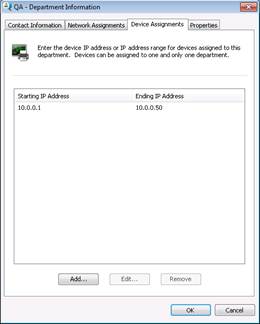
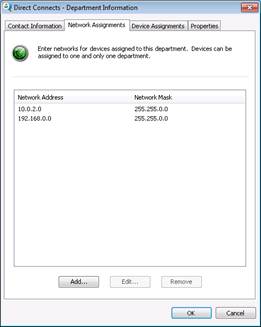
Printer assignment information can be optionally specified for any department. This information can be entered in the form of a device IP address, IP address range or a network. See the examples below:
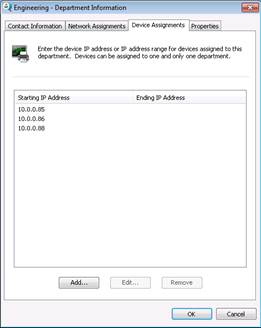
| <!--Example importing printer assignment by IP Address--> <SiteAudit xmlns="http://tempuri.org/SiteAuditImportSchema.xsd"> <Import> <Organization> <Company> <CompanyName><![CDATA[My Company]]></CompanyName> <Departments> <Department> <DepartmentName>Engineering</DepartmentName> <PrinterAssignment> <Devices> <IPAddress>10.0.0.85</IPAddress> <IPAddress>10.0.0.86</IPAddress> <IPAddress>10.0.0.88</IPAddress> </Devices> </PrinterAssignment> <Departments> <Department> <DepartmentName>QA</DepartmentName> </Department> </Departments> </Department> <Department> <DepartmentName>Other</DepartmentName> </Department> <Department> <DepartmentName>Direct Connects</DepartmentName> </Department> </Departments> </Company> </Organization> </Import> </SiteAudit> | |
|---|---|
| <!--Example importing printer assignment by range --> <SiteAudit xmlns="http://tempuri.org/SiteAuditImportSchema.xsd"> <Import> <Organization> <Company> <CompanyName><![CDATA[My Company]]></CompanyName> <Departments> <Department> <DepartmentName>Engineering</DepartmentName> <Departments> <Department> <DepartmentName>QA</DepartmentName> <PrinterAssignment> <Ranges> <Range> <StartAddress>10.0.0.1</StartAddress> <EndAddress>10.0.0.50</EndAddress> </Range> </Ranges> </PrinterAssignment> </Department> </Departments> </Department> <Department> <DepartmentName>Other</DepartmentName> </Department> <Department> <DepartmentName>Direct Connects</DepartmentName> </Department> </Departments> </Company> </Organization> </Import> </SiteAudit> | |
| <!--Example importing printer assignment by network (using CIDR and network mask--> <SiteAudit xmlns="http://tempuri.org/SiteAuditImportSchema.xsd"> <Import> <Organization> <Company> <CompanyName><![CDATA[My Company]]></CompanyName> <Departments> <Department> <DepartmentName>Engineering</DepartmentName> <Departments> <Department> <DepartmentName>QA</DepartmentName> </Department> </Departments> </Department> <Department> <DepartmentName>Other</DepartmentName> </Department> <Department> <DepartmentName>Direct Connects</DepartmentName> <PrinterAssignment> <Networks> <Network> <NetworkAddress>10.0.2.0</NetworkAddress> <!--CIDR equivalent to 255.255.0.0--> <Mask>/16</Mask> </Network> <Network> <NetworkAddress>192.168.0.0</NetworkAddress> <!— Network mask equivalent to CIDR value of /16--> <Mask>255.255.0.0</Mask> </Network> </Networks> </PrinterAssignment> </Department> </Departments> </Company> </Organization> </Import> </SiteAudit> |
Organization Import FAQs
The following list contains frequently asked questions about importing organization data into SiteAudit.
Q: What happens if a device is assigned to multiple departments in an import file?
The printer assignment is unspecified in this case. Users should take care not to assign the same printer to multiple departments in the import document.
Q: What values do optional fields take on if they are not specified in an import file?
Default or blank values are assigned if they are not specified in an import file. The following is a list of default values. (Note that DowntimeCostPerUserHour is for a future use and is not currently enabled).
| Field Name | Default Value |
|---|---|
| DowntimeCostPerUserHour | 35.00 |
| NumberOfUsers | -1 |
Q: What is imported if there is an error in my import file?
In the case that there is a validation error during import, no changes will be made to the database and nothing will be imported.
Q: Is it possible to import provisioning and discovery data in the same file as an organization import?
No.
Q: What happens to a device that is assigned to a department via import file printer assignment parameters and then manually assigned to a different department via the Printer Assignment dialog?
The device’s manual assignment will take precedence because it occurred after the import. Note in the Printer Assignment dialog that when the device is manually moved, there will be a selected checkbox under the Manually Assigned Department column to indicate that the device was manually assigned to a department. Any network or device assignments for that printer will not take precedence over it. If an import is performed after the manual printer assignment, it will overwrite the manual printer assignment.
Q: If I manually assign networks and ranges to my departments, will the printers automatically go into the department? What about newly discovered printers? Will these be automatically assigned to the specified departments?
Yes. Once you’ve entered printer assignments in your Department Information, the printers will automatically move to the department. Be careful not to assign the same printers to more than one department! Also, once any new printers are discovered, they will be automatically placed into the specified department.
Q: Can I just import my company and departments and then fill in the addresses and printer assignments in SiteAudit?
Yes. It is possible to modify any data related to your organization from the SiteAudit Viewer, including assigning printers to departments.
Notes
SiteAudit Asset tool can also be used to organization information: SiteAudit Asset Tool