

Sign in to print or save this article
Printing and saving articles is available to signed-in users. Sign in at http://netaphor.com/support/signin, or request an account at http://netaphor.com/support/request-access.
AA-00220 · http://netaphor.com/kb/AA-00220/siteaudit-monitor-viewer-deployment-checklist
SiteAudit Monitor & Viewer Deployment Checklist
On this page
Deployment Checklist
Please review the information below before deploying Netaphor SiteAudit™. This will ensure efficient installation and operation of SiteAudit. This checklist should be reviewed before and after deploying SiteAudit.
Contents
- Platform Requirements
- Windows Services
- Discovery Configuration
- Directly (Local) Connected Printer; Windows Print Server Discovery
- SNMP Access
- Credentials
- Windows Firewall
Platform Requirements
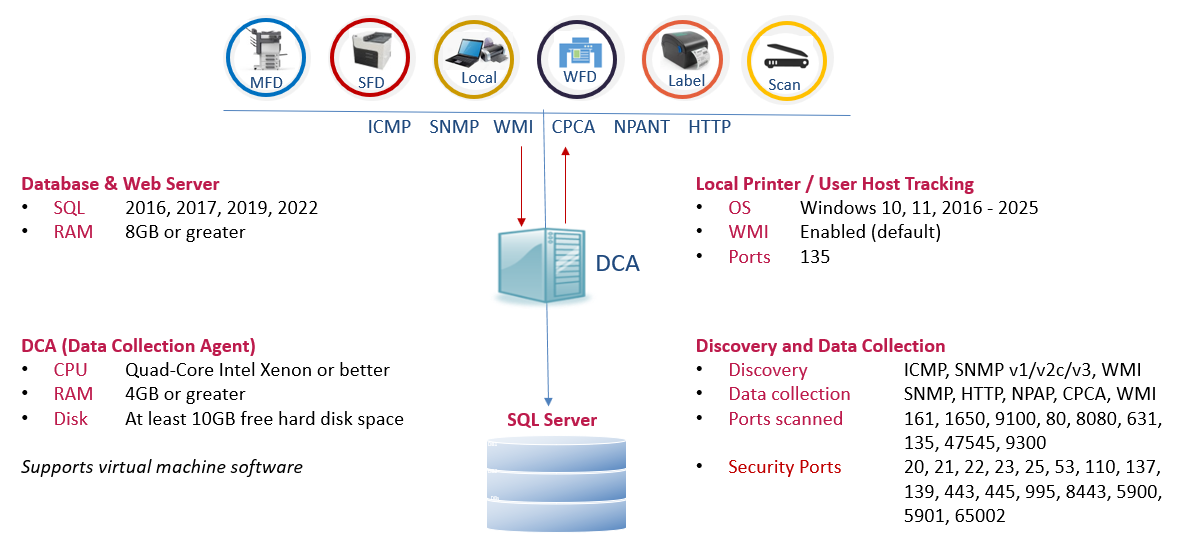
The following platform requirements are considered the minimum standard based on the number of printers being monitored. These requirements are sufficient for most environments. But depending on usage, it may be necessary to increase the amount of available RAM or hard drive space. Netaphor support can help to evaluate performance to determine if the assigned resources are adequate.
Platform
Physical hardware performs better than virtual machines. It is imperative to meet or exceed the minimum requirements for physical hardware when using a virtual machine.
.NET 4.8 or later is required for all SiteAudit client and server machines. It is recommended to install Windows Updates and the latest .NET Framework version
| Number of Printers | Windows Operating System | Host Machine Running Monitoring Service | SQL Server | IIS |
|---|---|---|---|---|
| < 250 | Windows 10,11 | 4 GB RAM Dual Processor Quad Core or better 200 MB free disk space | SQL Server (or Express) 2016, 2017, 2019, 2022; may run on same host as monitoring service | IIS 10 Additional 10 MB free disk space |
| 250 - 1000 | 2016, 2019, 2022, (2025 8.1.0.0 and later) | 8 GB RAM Dual Processor Quad Core or better 400 MB free disk space | SQL Server 2016 2017, 2019, 2022; may run on same host as monitoring service | IIS 10 Additional 10 MB free disk space |
| 1000 - 5000 | 2016, 2019, 2022, (2025 8.1.0.0 and later) | 16 GB RAM Dual Processor Quad Core or better 400 MB Free disk space | SQL Server 2016, 2017, 2019, 2022; may run on same host as monitoring service Additional 4 GB RAM if SQL Server is on same host as monitoring service | IIS 10 Additional 10 MB free disk space |
| 5000 - 10000 | 2016, 2019, 2022, (2025 8.1.0.0 and later) | 32 GB RAM Dual Processor Quad Core or better 600 MB free disk space | SQL Server 2016, 2017, 2019, 2022; may run on same host as monitoring service Additional 8 GB RAM if SQL Server is on same host as monitoring service | IIS 10 Additional 10 MB free disk space |
| 10000 - 25000 | 2016, 2019, 2022, (2025 8.1.0.0 and later) | 32 GB RAM Dual Processor Quad Core or better 800 MB free disk space | SQL Server 2016, 2017, 2019, 2022; may run on same Host as monitoring service Additional 16 GB RAM if SQL Server is on same host as monitoring service | IIS 10 Additional 10 MB free disk space |
Data Storage
The amount of data stored for a device depends on its make and model. Environments with diverse fleets of printers—ranging from single-function black and white printers to multifunction devices with multiple consumables—can vary widely in stored data, typically between ~0.5MB/mo. to 5MB/mo. For instance, single-function printers may report only a total count and have a single toner, while multifunction devices can support numerous sophisticated counters and print sizes (e.g., A4 scan, A3 scan, A4 b/w scan, A4 color scan, A4 duplex b/w scan, scan to email, scan to network, scan to OneDrive, etc.). Additionally, these printers often support various protocols and security-related features, influencing overall data storage needs.
It is crucial to ensure adequate space for data growth, particularly during upgrades where SQL log files may expand significantly. We recommend configuring the SQL recovery model to Simple recovery and periodically shrinking log files to effectively manage their size.
Disk Size & Network Traffic
Both disk usage and network traffic generated by SiteAudit are low and manageable. This solution has been successfully implemented across diverse global environments. While it's important to acknowledge potential data growth and network traffic considerations, these factors typically pose minimal issues.
Please note that this information is provided as a guideline for making deployment decisions. It is based on historical and observational data from typical environments with varied printer types (such as single-function, multifunction, label, networked, and local printers), multiple counters, address spacing, IP addresses, and other relevant factors. Actual results may vary accordingly.
Hard Disk Space Requirements
SQL database log files can grow significantly, especially during an upgrade. One must be sure enough disk space exists to perform upgrades. The approximate space needed to perform the upgrade should be determined by the size of the database. Hard disk space equaling approximately twice the size of the database is required.
It is strongly recommended that the log file be shrunk after an upgrade and periodically thereafter as part of regular database maintenance. For more information about shrinking the SiteAudit database log file, refer to the Shrink Database Log File article.
Database
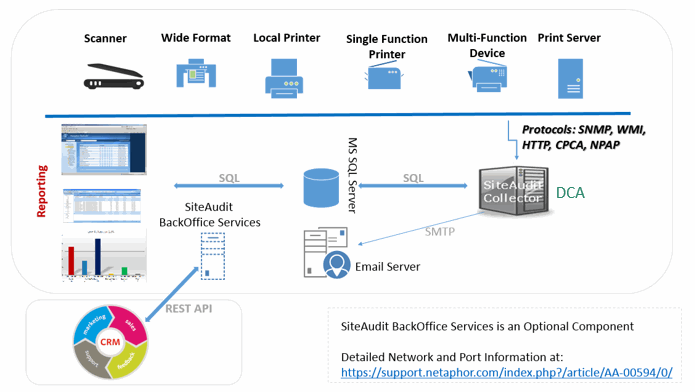
- If SQL Server is installed on the network, make sure it can be used and that there is a database for data collection.
- The minimum required privilege profile for database operations is Owner. Users with Owner privileges can update database schemas, backup and restore the database (from within SiteAudit) and discard the data. At least one person using SiteAudit should have this privilege.
- To create a database from within SiteAudit, the user must have System Administrator privileges (if SQL security is being used) or Administrator privileges (if integrated security is being used)
- SQL Express 2016 supports database sizes up to 10 GB.
Reporting
Windows Services
Windows services settings
Make sure that the services listed below are restarted or able to be started.
| Service | Where needed | Startup type |
|---|---|---|
| COM+ Event System | SiteAudit Monitor Targets that need to be scanned | Automatic on servers Manual on workstations |
| Remote Access Auto Connection Manager | SiteAudit Monitor and SiteAudit Viewer | Manual |
| Remote Access Connection Manager | SiteAudit Monitor and SiteAudit Viewer | Manual |
| Remote Procedure Call (RPC) | SiteAudit Monitor and SiteAudit Viewer | Manual |
| Remote Procedure Call (RPC) Locator | SiteAudit Monitor and SiteAudit Viewer | Manual |
| Remote Registry | SiteAudit Monitor | Automatic |
| Server | SiteAudit Monitor and SiteAudit Viewer | Automatic |
| Windows Management Instrumentation | SiteAudit Monitor Targets that need to be scanned | Automatic |
| Windows Management Instrumentation Driver Extensions | SiteAudit Monitor | Manual |
| Workstation | SiteAudit Monitor and SiteAudit Viewer | Automatic |
Make sure that Windows Management Instrumentation (WMI) access is enabled on every client computer that needs to be scanned and on the host where SiteAudit Monitor is running.
Discovery Configuration
Network discovery
- Collect the list of networks over which discovery needs to be performed. The network address and mask are required for each network. Collect the list of networks over which discovery should NOT be performed. The network address and mask are required for each network.
- Collect the list of ranges that need to be included or excluded. Decide whether broadcasts should be used. If broadcasts are not used, add the broadcast addresses to the list of devices not to be scanned.
- On the Devices tab, add any devices that need to be added or excluded.
- Devices that should be excluded are UPS devices, DNS server(s), and other devices that should not be accessed.
SNMP
- Make sure that all needed community strings are available.
- Order the list to make sure that most frequently used community strings are the first ones tried.
- Remove any community strings that will not be used.
Windows hosts
- Make sure that all needed credentials are in the list on the Host Credentials tab of the Discovery Configuration dialog box.
- Make sure that any necessary firewall access has been configured.
Security
- Check to see whether security software needs to be configured in order to white-list SiteAudit. This will prevent false positives from being registered when SiteAudit is scanning the network and collecting data.
As part of the discovery process, SiteAudit first attempts to find a device and then tests to see if that device is a printer. Security software in the network may register these actions as suspicious.
To avoid these false positives, the security software should be configured to ignore requests issued from the IP address where the SiteAudit monitoring software runs.
Directly (Local) Connected Printer; Windows Print Server Discovery
SiteAudit finds printers directly connected (via USB or parallel connections) to a Windows host. To access the host, SiteAudit requires the credentials of an Administrator on that host.
To make sure that discovery succeeds, you should:
- Provide a credential that will work on all hosts
- Ensure that these credentials do NOT get locked out after a number of failed attempts
- Run the "Unauthenticated Hosts" report to see which hosts did not allow access and add the credentials for those hosts
SNMP Access
The SNMP protocol includes a provision for access control using “community” strings. A community string is required to access a device. SiteAudit maintains a list of community strings that it uses to attempt to access SNMP data from a device.
This list is ordered, and SiteAudit tries each string in turn until one succeeds or there are no more strings to try. The list is pre-seeded (with a set of commonly used community strings) but a user can remove or add strings and can change the order in which strings are tried.
Some SNMP agents within a device may be configured to generate “authentication failure” traps when a community string is used that is not valid for that device. To avoid getting these authentication failure traps, you should:
- Ensure that the list of community strings contains only those that are needed
- Ignore the authentication failure traps if they indicate that the source of the request (the application sending the message with the invalid community string) is SiteAudit
- Disable the authentication failure traps on the device
Credentials
SiteAudit requires credentials in four instances:
- Installation of SiteAudit on a server or workstation requires a local account running as a service.
- Installation of the SQL Server or SQL Server Express database requires a System Administrator password or, if integrated security is used, login credentials of an individual who has administrator-level access to the database.
- For directly connected printer discovery, Windows administrator credentials for the hosts with attached printers.
- Direct printer discovery using WMI requires an account that has full permissions for the ROOT WMI namespace.