

Sign in to print or save this article
Printing and saving articles is available to signed-in users. Sign in at http://netaphor.com/support/signin, or request an account at http://netaphor.com/support/request-access.
AA-01345 · http://netaphor.com/kb/AA-01345/using-a-third-party-snmp-tool-to-troubleshoot-printer-connectivity
Using a Third Party SNMP Tool to Troubleshoot Printer Connectivity
This article describes how to use a third party tool, SnmpWalk, to confirm SNMP communication to a remote printer.
Using this tool can help confirm SNMP connectivity independent of SiteAudit.
Downloading and Running SnmpWalk
- Download the SnmpWalk tool from https://ezfive.com/snmpsoft-tools/snmp-walk/.
- The download is a compressed .zip file. Extract the SnmpWalk.exe file.
- Open the Command Prompt.
- Change directory to the location where SnmpWalk.exe was extracted.
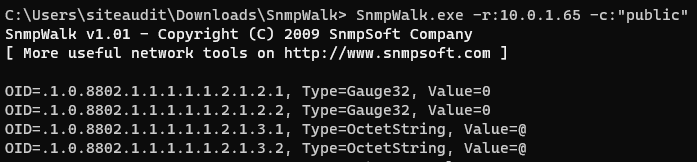
- Enter the following command, replacing TARGET_IP with the IP address of the printer you are troubleshooting:
- SnmpWalk.exe -r:TARGET_IP
- If the printer is not using the default community string of public, then enter the following command, replacing COMMUNITY_STRING with the correct community string.
- SnmpWalk.exe -r:TARGET_IP **-c:"*COMMUNITY_STRING*"**
- If the communication is successful, the output confirms SNMP communication with the remote device and shows which OID values are responding.

- If the output shows Timeout, then there is likely a printer configuration issue that must be resolved before SiteAudit can discover the printer.
