
Sign in to print or save this article
Printing and saving articles is available to signed-in users. Sign in at http://netaphor.com/support/signin, or request an account at http://netaphor.com/support/request-access.
AA-01278 · http://netaphor.com/kb/AA-01278/asset-tool-importing-asset-data-with-the-siteaudit-assettool
Asset Tool - Importing asset data with the SiteAudit AssetTool
Importing asset data with the SiteAudit AssetTool
Before importing, verify that the 'Server' and 'Database' fields are correct
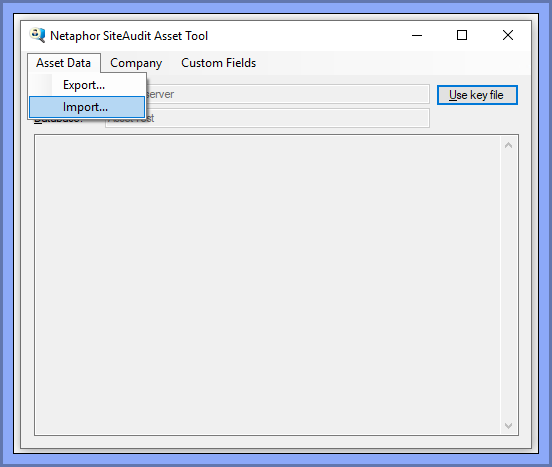
- Open 'Netaphor SiteAudit Asset Tool'
- Click the button 'Asset Data'
- Select 'Import...' from the drop down menu
Select the CSV file that should be imported.
example:
- Name of the CSV file: export.CSV
- Path of the CSV file: C:\tmp\export.csv
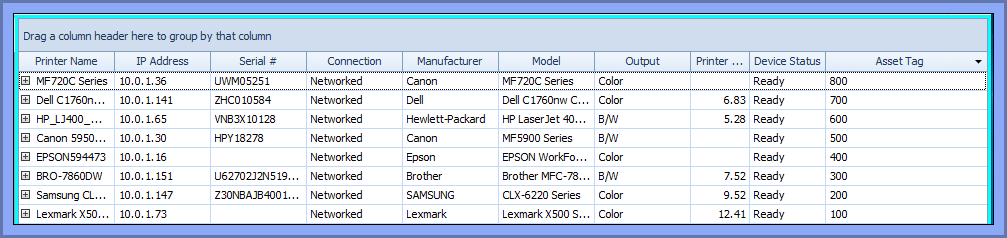
The example below shows SiteAudit View before an import.
*Note the values in the column, 'Asset Tag'
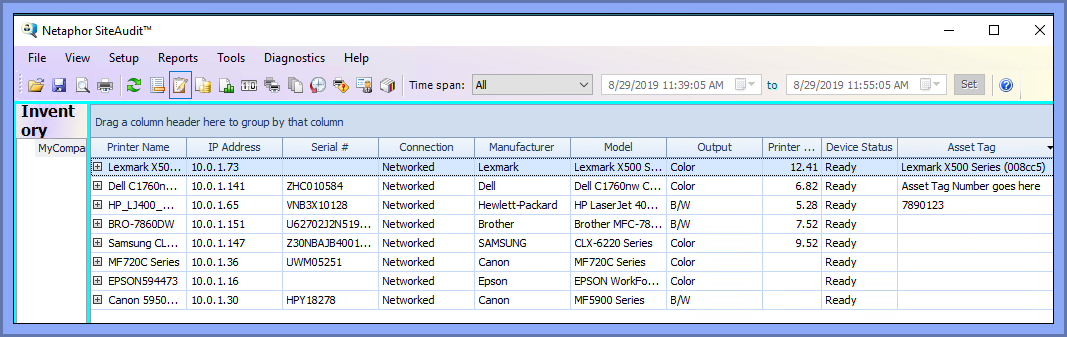
After an import has occurred, the column 'Asset Tag' has been updated.
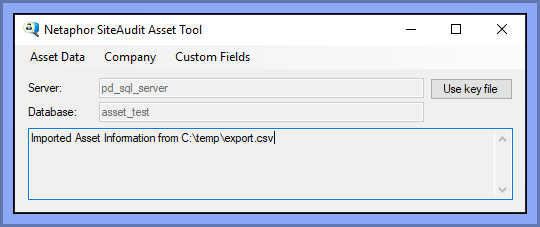
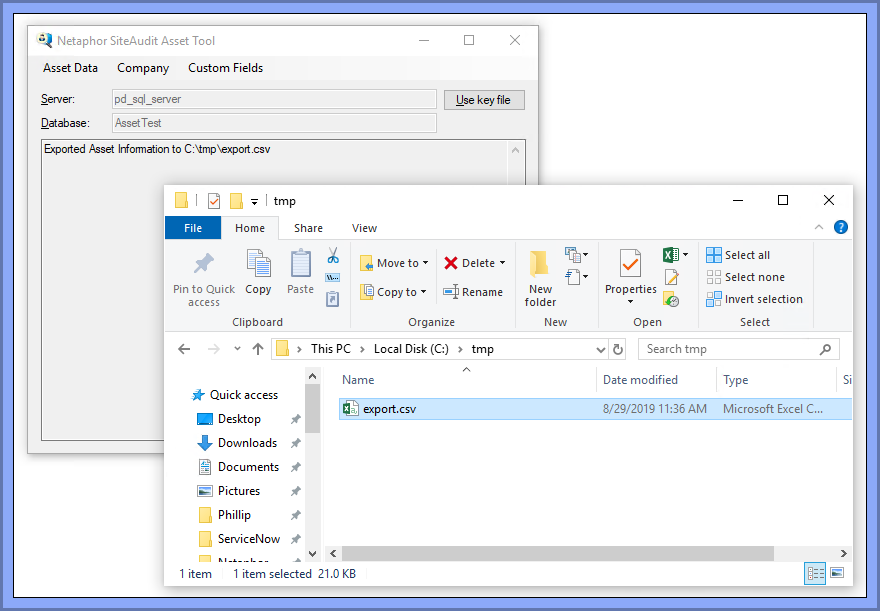
An export log will be displayed in the Asset Tool's TextBox, which is underneath the 'Database' field
In the example below, a successful export log is displayed.