
Sign in to print or save this article
Printing and saving articles is available to signed-in users. Sign in at http://netaphor.com/support/signin, or request an account at http://netaphor.com/support/request-access.
AA-00496 · http://netaphor.com/kb/AA-00496/installing-siteaudit-on-site
Installing SiteAudit On-Site
This guide will teach you how to install Netaphor SiteAudit™ On-Site. The following video demonstrates the SiteAudit OnSite installation process.
Before You Begin
Before you install SiteAudit On-Site, you should do the following:
- Make hardware and software decisions. See Overview of SiteAudit On-Site Deployment.
- Prepare SQL Server. See Preparing SQL Server.
- Install required software. See Installing Prerequisites.
Downloading and Installing SiteAudit On-Site
- Browse to http://www.netaphor.com/
- Select the desired language and the format of your Windows version:
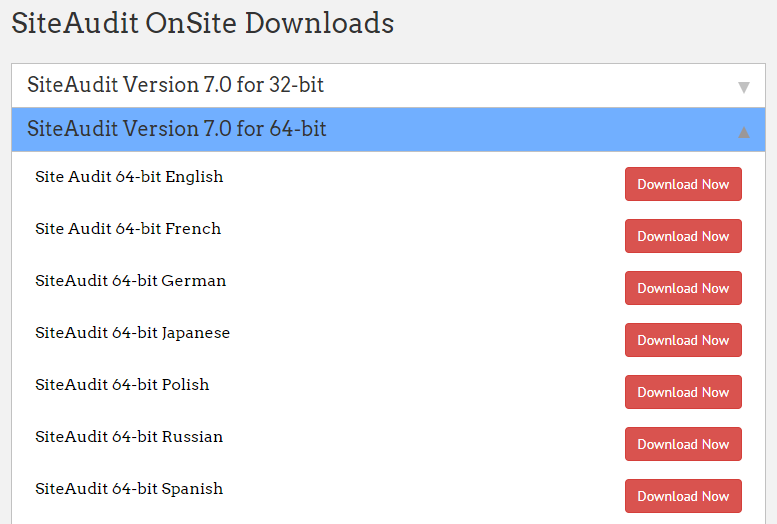
- Double-click the file to run the installer (for example, SiteAudit64_EN.msi for the 64-bit English version).
Administrator privileges are required to install SiteAudit when UAC is enabled
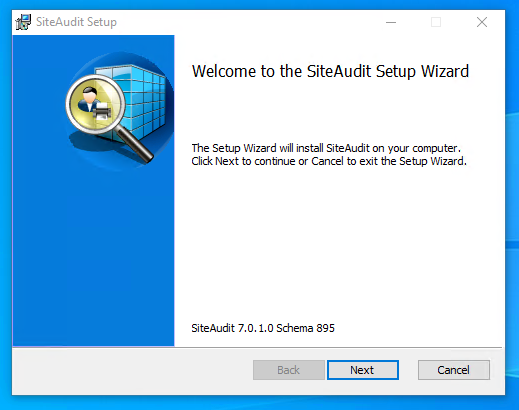
- On the welcome screen, click Next.
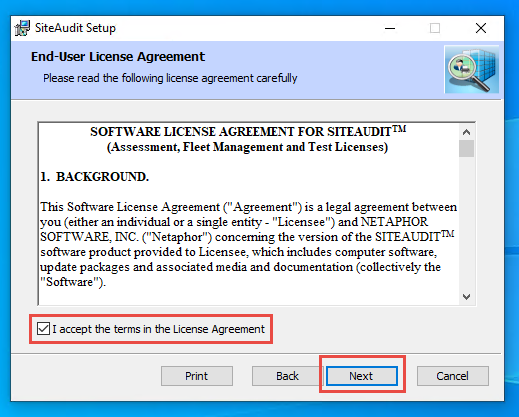
- Read the agreement, select the check box, and click Next.
- Select the check boxes for the desired components, and click Next.
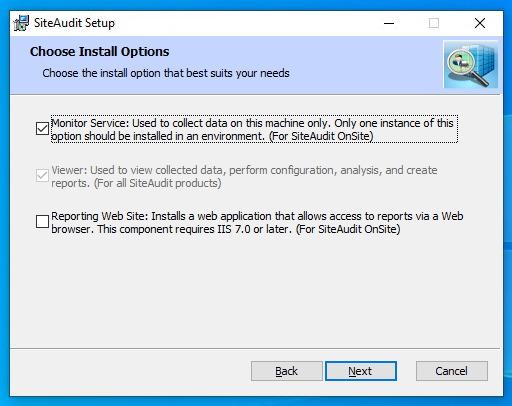
- Monitor Service: This is the SiteAudit Monitor service.
- Viewer: This is the SiteAudit Viewer. It is required, and selected automatically, if you select Monitor Service. To install the Viewer only, uncheck Monitor Service and check Viewer.
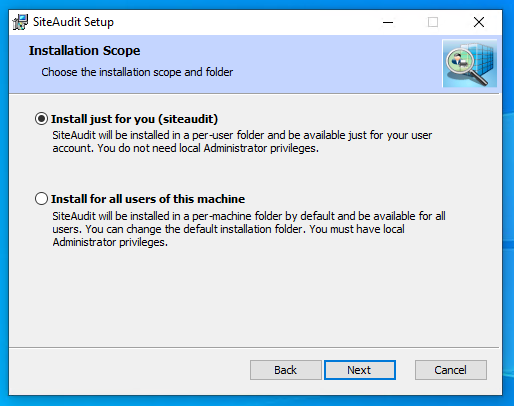
- Select an option based on whether you want other users of the computer to have access to SiteAudit, and click Next.
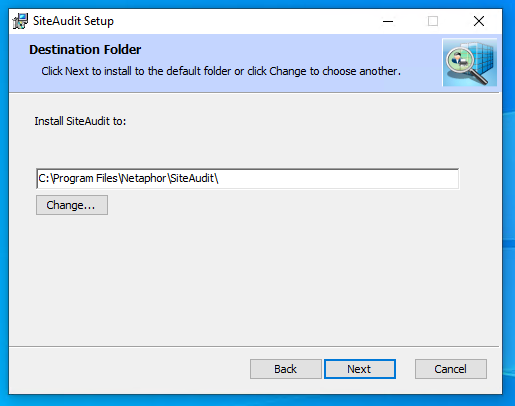
- Enter the path where you want to install SiteAudit, and click Next.
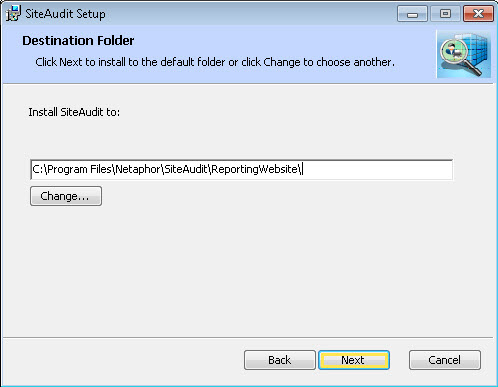
- If you selected Access reports via a browser in step 8, enter the path where you want to install Reporting Web Site, and click Next.
- Click Install.
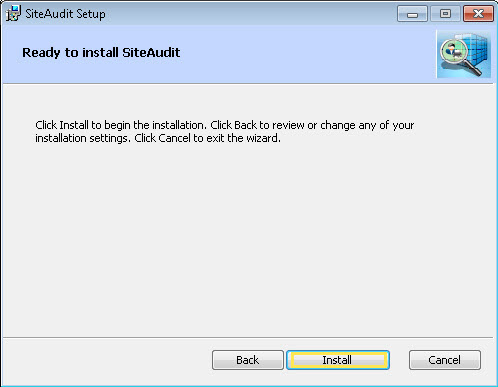
If you have User Account Control enabled for your operating system, the installer displays dialog boxes that require you to confirm certain actions. To complete the installation, you must click Yes to allow these actions.
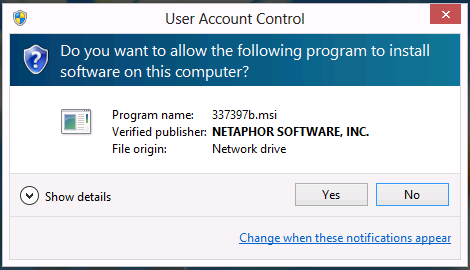
By default, if you do not click Yes within 2 minutes, the effect is the same as clicking No: The action fails, and installation is canceled. Therefore, you should not leave the computer unattended during installation.
- Read the release notes, and click Next.
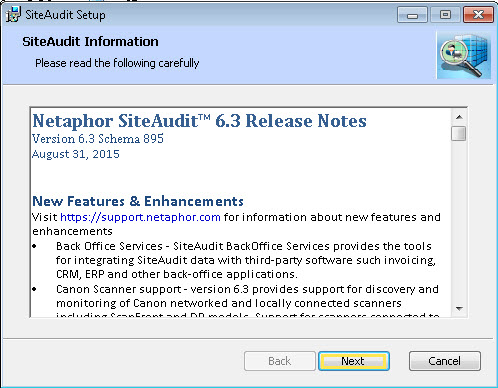
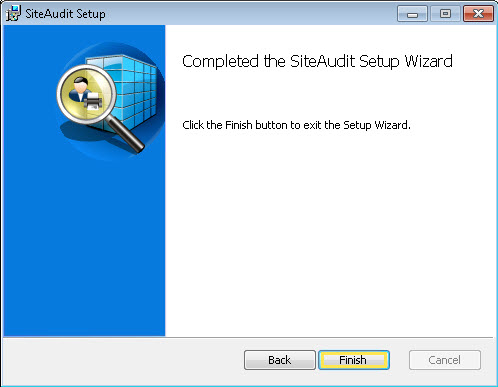
- Click Finish.